Using Cameo Wordpress Theme - Read me
- Recommended thumbnail sizes (W x H : in pixels)
- Uploading a thumbnail preview for your post
- Changing the "Featured" display image
This read me assumes that the user already has basic working knowledge of wordpress. This article does not cover Wordpress Theme installation as well as how to add, edit or delete posts, categories and photos ( media ).
If you need help with these things, kindly visit Wordpress.Org
Recommended thumbnail sizes (W x H : in pixels)
Featured (home / index page) : 900 x 310
Latest Post (home / index page) : 290 x 120
Archives : 60 x 40
Though Cameo™ automatically resizes your uploaded images to fit the layout, for best visual display results, it is recommended to make sure width and height of images are in proportion or exactly the same as recommended sizes.
Uploading a thumbnail preview for your post
- Login to your wordpress admin
- Click on the Posts tab
- Edit / Add a new post
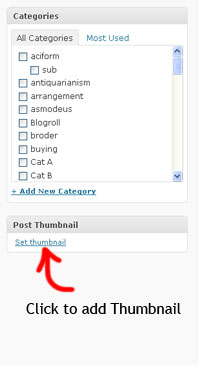
- On the lower right portion of the page, you'll see the Post Thumbnail panel just below the categories panel, click on Set Thumbnail. see diagram 1 »
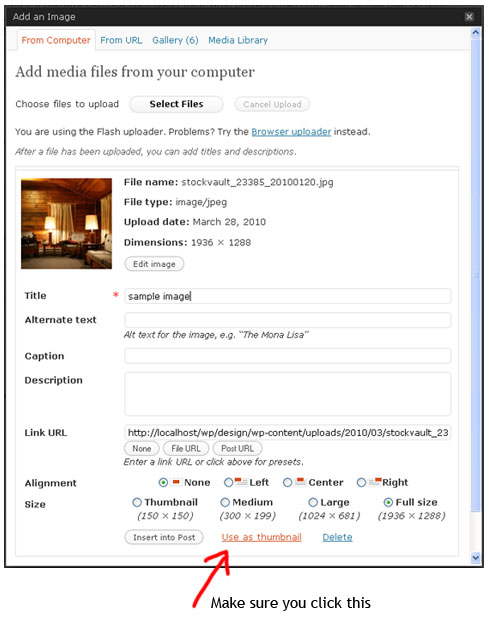
- When the media window opens, just add the image as you would normally.
- When you're done, instead of clicking insert to post, click Use as Thumbnail. see diagram 2 »
- That's it. You've successfully set up your post thumbnail. For best results, make sure to follow the recommended sizes seen above.
Changing the "Featured" display image
- Login to your wordpress admin
- Click on the Posts tab
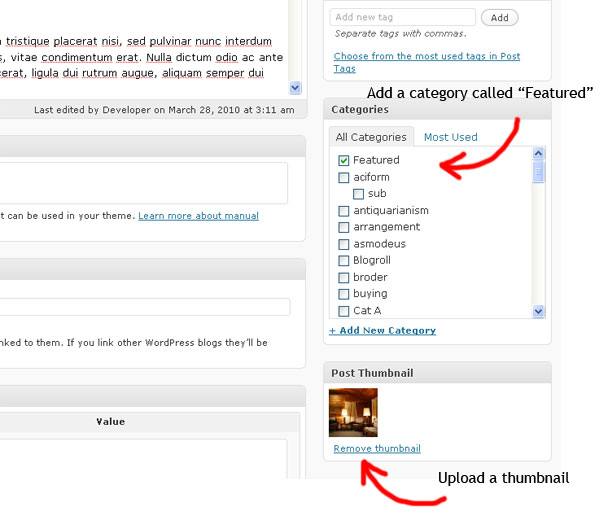
- Under Posts, click on the Categories tab and add a new category called "Featured". Make sure the you get the right spelling as it's case sensitive.
- Add or Edit any post and place it under the "Featured" category.
- Upload a thumbnail that you want to see on the home page of your site. see step 4 or diagram 3 »